Page Speed Optimization Guide 2026: Core Web Vitals and Performance Strategies
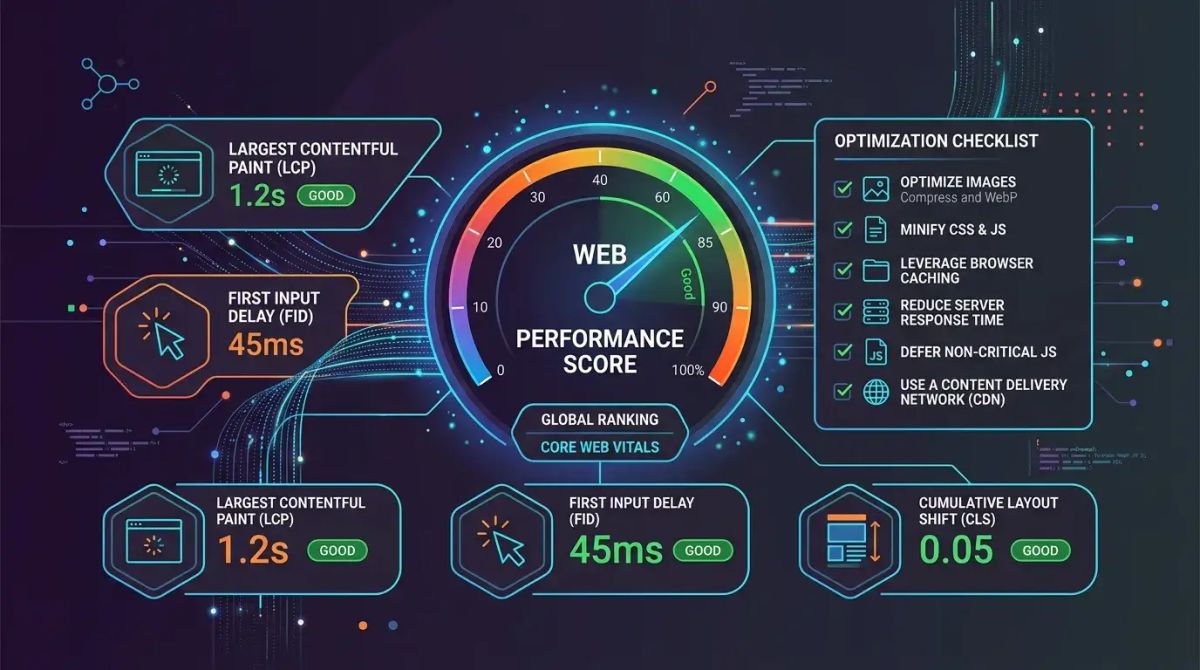
Page Speed Optimization Guide 2026: Core Web Vitals and Performance Strategies
Page speed is one of the most critical technical components of modern SEO. Google has used Core Web Vitals metrics as a direct ranking signal since 2021, and in 2026 continues to increase the weight of these metrics in its algorithm. Slow-loading pages do not merely degrade user experience; they cause organic ranking losses, lower conversion rates, and increased bounce rates. Research shows that a one-second increase in page load time can reduce conversions by seven percent. Fifty-three percent of mobile users abandon pages that take longer than three seconds to load. In this guide, we will examine every dimension of page speed optimization in depth, explain the Core Web Vitals metrics, and provide actionable strategies you can implement immediately.
Why Page Speed Matters So Much for SEO
Google has placed user experience at the center of its ranking algorithms. Page speed is one of the most measurable and directly impactful components of that experience. Fast-loading pages signal to search engines that a website is well-built and delivers quality.
The impact of page speed on SEO operates across multiple layers. First, Google uses page speed as a direct ranking signal. Pages that fail to meet Core Web Vitals thresholds are disadvantaged compared to competitors who pass them. Second, slow pages negatively affect user behavior metrics. Bounce rate increases, time on page decreases, and pages per session drops. These behavioral signals indirectly influence ranking algorithms as well. Third, slow sites waste Googlebot crawl budget. Google allocates a limited crawl budget to each site, and slow pages prevent that budget from being used efficiently. When Googlebot spends excessive time waiting for slow pages to respond, fewer of your pages get crawled and indexed.
SEOctopus's Technical Health Score feature continuously monitors your site's page speed performance and reports daily changes in your Core Web Vitals metrics. This allows you to catch performance regressions immediately and intervene before they impact your rankings.
Core Web Vitals Explained in Detail
Core Web Vitals are three key metrics Google defined to measure user experience on web pages. These metrics are based on real user data collected through the Chrome User Experience Report (CrUX) and can also be measured through lab testing tools.
LCP — Largest Contentful Paint
LCP measures how long it takes for the largest visible content element on the page to render. This is typically a hero image, a large text block, or a video thumbnail. A good LCP value should be under 2.5 seconds. Values between 2.5 and 4 seconds need improvement, and values above 4 seconds are considered poor.
To improve LCP, you need to reduce server response time, eliminate render-blocking resources, optimize large images, and preload critical resources. The most common LCP issue is unoptimized hero images. Converting an image to WebP or AVIF format and using responsive srcset attributes can dramatically improve LCP times. Additionally, ensuring your server responds quickly with the initial HTML document is fundamental, because no content can render before the browser receives the HTML.
INP — Interaction to Next Paint
INP replaced the First Input Delay (FID) metric in 2024. INP measures the time from when a user interacts with the page to when the browser visually responds to that interaction. Unlike FID, which only measured the first interaction, INP considers all interactions throughout the page lifecycle and reports the worst-performing one. A good INP value should be under 200 milliseconds.
To improve INP, you need to break up long JavaScript tasks, move main-thread-blocking operations to web workers, prevent unnecessary re-renders, and optimize interaction handlers. In React-based applications, unnecessary state updates and excessive re-rendering are among the most common causes of poor INP scores. Using techniques like memoization, virtualization for long lists, and debouncing input handlers can significantly improve interaction responsiveness.
CLS — Cumulative Layout Shift
CLS measures unexpected layout shifts of visible content as the page loads. Few experiences are more frustrating than reaching for a button only to have the page shift and cause a misclick. A good CLS value should be under 0.1.
To improve CLS, assign explicit dimensions (width and height attributes) to images and videos, reserve fixed height for ad slots, load web fonts with font-display swap, and avoid injecting content above existing content. Ad slots and dynamically loaded content are the largest sources of CLS on most websites. Placeholder elements with defined dimensions prevent layout shifts when dynamic content loads.
SEOctopus monitors your Core Web Vitals metrics using both lab data through its Lighthouse integration and field data from CrUX. It provides trend graphs for all three metrics and prioritized improvement recommendations based on the potential impact of each fix.
How to Measure Page Speed
If you cannot measure accurately, you cannot improve effectively. Multiple tools exist for measuring page speed, and each has different strengths.
Google Lighthouse
Lighthouse is a performance auditing tool built into Chrome DevTools and also available as a command-line interface. It provides detailed scores and recommendations across Performance, Accessibility, Best Practices, SEO, and PWA categories. Lighthouse runs synthetic tests in a simulated lab environment, meaning results can vary based on device and network conditions. Run Lighthouse multiple times and take the median score for more reliable results.
PageSpeed Insights
Google's PageSpeed Insights tool combines both lab data from Lighthouse and real user data from CrUX in a single report. When you enter a URL, you can compare your page's Core Web Vitals performance against real user experiences. This tool lists optimization opportunities in priority order, making it straightforward to identify the highest-impact fixes first.
WebPageTest
WebPageTest is the most comprehensive tool for advanced performance analysis. You can test from different geographic locations, different devices, and different network conditions. Features like waterfall charts, filmstrip view, and video comparison allow you to visually identify performance bottlenecks. The ability to test on real devices and real network conditions provides the most accurate representation of actual user experience.
Chrome UX Report (CrUX)
CrUX is a database of real performance data collected from Chrome users who have opted in. You can query it through BigQuery or access it programmatically through the CrUX API. CrUX data represents the actual user metrics that Google uses in its ranking algorithms, making it the definitive source for understanding how Google perceives your site's performance.
SEOctopus's Lighthouse integration automatically scans all your pages and measures performance scores at recurring intervals. It tracks score changes over time and sends automatic alerts when performance degrades beyond configured thresholds.
Image Optimization
Images account for an average of fifty percent of a web page's total data weight. Image optimization represents the single largest opportunity for page speed improvement on most websites.
Modern Image Formats
WebP delivers twenty-five to thirty-five percent smaller file sizes compared to JPEG while maintaining equivalent visual quality. AVIF produces files twenty percent smaller than even WebP, though browser support is not yet as universal. The ideal approach uses the picture element to serve AVIF as the primary format, WebP as a fallback, and JPEG as the final fallback. This progressive enhancement strategy ensures every user receives the best format their browser supports.
Lazy Loading
Loading images below the fold with lazy loading dramatically improves initial page load time. The native loading lazy attribute in HTML is sufficient for most use cases. However, do not apply lazy loading to above-the-fold images, especially the hero image that serves as the LCP element. Lazy loading your LCP element will significantly harm your LCP score because the browser delays loading the most important visual content.
Responsive Images
Serving different image sizes for different screen sizes prevents unnecessary data transfer on mobile devices. The srcset attribute lets you offer the browser multiple image size alternatives. The browser automatically selects the most appropriate image based on the device's screen size and pixel density. The sizes attribute provides additional hints about how large the image will be displayed, helping the browser make an even more efficient choice.
CDN Image Delivery
Serving images through a CDN ensures content is delivered from the server closest to the user. This provides a significant speed improvement, especially for sites with international audiences. Modern image CDNs also offer automatic format conversion, resizing, and quality optimization features, meaning you can serve a single source image and let the CDN handle all the optimization per request.
JavaScript Optimization
JavaScript is the backbone of modern web applications, but it can also be the biggest enemy of performance. Unoptimized JavaScript blocks the main thread, extends render times, and increases interaction response times.
Code Splitting
Instead of shipping all JavaScript in a single bundle, code splitting ensures each page loads only the JavaScript it needs. Next.js and other modern frameworks perform route-based code splitting automatically. Using dynamic imports, you can load specific components only when they are actually needed. This approach can reduce initial JavaScript payload by fifty percent or more on complex applications.
Tree Shaking
Tree shaking is the process of excluding unused code from the final bundle. Modern bundlers like webpack, esbuild, and Rollup perform this automatically, but only when ES module syntax (import and export) is used. CommonJS require statements prevent tree shaking. When choosing libraries, pay attention to whether they support tree shaking. A library that exports everything in a single entry point forces your bundle to include code you never use.
Defer and Async Strategies
Using defer and async attributes on script tags prevents JavaScript from blocking rendering. The defer attribute ensures the script executes after HTML parsing completes and runs before the DOMContentLoaded event. The async attribute downloads the script without pausing HTML parsing but executes immediately upon download completion. For non-critical third-party scripts, using defer or async provides significant performance gains. As a general rule, use defer for your own scripts and async for independent third-party scripts.
Main Thread Optimization
Long-running JavaScript tasks block the main thread and negatively impact the INP metric. Tasks exceeding fifty milliseconds should be broken into smaller chunks using techniques like requestIdleCallback, setTimeout, or the yieldToMain pattern. Moving heavy computation to Web Workers frees the main thread entirely, allowing it to remain responsive to user interactions. The scheduler.yield API, now available in modern browsers, provides a standardized way to yield back to the browser during long tasks.
CSS Optimization
CSS is a render-blocking resource, meaning unoptimized CSS files directly delay page rendering. The browser cannot display any content until it has downloaded and parsed all render-blocking CSS.
Critical CSS
Inlining the styles needed for above-the-fold content (critical CSS) directly in the HTML allows the first render to happen without waiting for external CSS files to load. The remaining CSS can be loaded asynchronously. This technique significantly improves LCP, especially on sites with large CSS files. Tools like Critical and Critters can automate the extraction and inlining of critical CSS during your build process.
Purging Unused CSS
Over time, large projects accumulate unused CSS rules that unnecessarily bloat file sizes. PurgeCSS and similar tools automatically detect and remove CSS rules that are not referenced in your HTML. Tailwind CSS, a utility-first framework, automatically purges unused classes in production builds. Regularly auditing your CSS for unused rules prevents style sheet bloat from gradually degrading performance.
CSS Minification and Compression
Minifying CSS files (removing whitespace, comments, and unnecessary characters) and compressing them with GZIP or Brotli can reduce file sizes by seventy to ninety percent. Modern build tools handle these processes automatically. Ensure your web server is configured to serve compressed CSS files and that appropriate Cache-Control headers are set for long-term caching of versioned assets.
Server-Side Optimization
Server performance forms the foundation of page speed. Even the best-optimized frontend is meaningless when sitting on top of a slow server response.
Caching Strategies
Browser caching, CDN caching, and server-side caching dramatically speed up repeated requests. Properly configuring Cache-Control headers prevents static assets like images, CSS, and JavaScript from being re-downloaded on every request. For dynamic content, the stale-while-revalidate strategy serves cached content while refreshing it in the background, giving users instant responses while keeping content fresh.
Compression
Compressing server responses with GZIP or Brotli significantly reduces the amount of data transferred. Brotli offers fifteen to twenty-five percent better compression ratios compared to GZIP and is supported by all modern browsers. Activating Brotli compression on your web server reduces the transfer time of large HTML, CSS, and JavaScript files. Ensure your server negotiates the best available compression algorithm based on the client's Accept-Encoding header.
HTTP/2 and HTTP/3
HTTP/2 offers significant performance improvements over HTTP/1.1 because it can send multiple requests over a single TCP connection. Multiplexing, server push, and header compression features reduce page load times. HTTP/3 uses the QUIC protocol to provide even lower latency. Ensure your web server supports HTTP/2 or HTTP/3 and that your TLS configuration is optimized for fast handshakes.
CDN Usage
A CDN distributes your content across edge servers around the world, delivering from the point closest to each user. This provides a major speed advantage, especially for sites with international audiences. CDN providers like Cloudflare, Fastly, and AWS CloudFront also offer additional features such as automatic image optimization, DDoS protection, and edge computing capabilities that can further reduce latency.
Font Optimization
Web fonts can have a surprisingly large impact on page load times. Unoptimized font strategies lead to flash of invisible text (FOIT) or flash of unstyled text (FOUT), both of which degrade user experience and can impact CLS.
Font Display Swap
Setting font-display swap in your CSS ensures a system font is displayed while the custom font file loads, then swaps to the custom font once it is ready. This guarantees text is visible immediately and protects your LCP metric. If the font appearance change is unacceptable for your brand, you can use font-display optional, which uses the system font permanently if the custom font does not load quickly enough.
Font Preloading
Preloading critical fonts with link rel preload helps the browser discover and download font files earlier. This specifically solves the problem of font-face declarations inside CSS files being discovered late by the browser. Only preload fonts used above the fold; unnecessary preloading wastes resources and bandwidth. Use the crossorigin attribute on font preload links, as fonts are always fetched using CORS.
Font Subsetting
Removing characters you do not use from font files through subsetting significantly reduces file sizes. For example, a site using only Latin characters does not need to include Cyrillic and Arabic character sets. Google Fonts applies automatic subsetting using the unicode-range property. For self-hosted fonts, tools like glyphhanger and fonttools allow you to create custom subsets containing only the characters your site actually uses.
Variable Fonts
Variable fonts contain multiple weights and styles within a single font file. Instead of loading separate files for regular, bold, and italic variations, a single variable font file can reduce total font data transfer by fifty to seventy percent. Variable fonts also enable smooth weight transitions and fine-grained typographic control that was previously impossible.
Third-Party Script Management
Third-party scripts including analytics, advertising, chat widgets, and social media buttons are the silent killers of page speed. Each third-party script adds additional DNS lookups, HTTP requests, and JavaScript execution time.
Third-Party Script Auditing
Regularly audit all third-party scripts running on your pages. In Chrome DevTools, the Network tab lets you filter third-party requests to see how much resources each script consumes. Remove scripts that cannot demonstrate their value. Before adding any new third-party script, measure its performance impact in a staging environment to understand the cost before it reaches production.
Deferred Loading
Load non-critical third-party scripts with a delay. Analytics scripts can be initiated after the page has loaded. Live chat widgets can be loaded after the user interacts with the page. Social media sharing buttons can be activated when the user scrolls to the relevant section. This approach significantly improves initial page load performance without sacrificing functionality.
Facade Pattern
Use the facade pattern for heavy third-party widgets. For example, show a static preview image instead of a YouTube video player, and load the actual video player only when the user clicks. This technique can reduce initial JavaScript loading by hundreds of kilobytes. The same pattern applies to map embeds, social comment widgets, and any heavy interactive embed.
Mobile Performance Considerations
Mobile devices have limited processing power, limited memory, and variable network conditions compared to desktop computers. Mobile performance optimization therefore requires dedicated attention and specific strategies.
Mobile-First Approach
Because Google uses mobile-first indexing, page speed optimization should primarily focus on the mobile experience. Test with Lighthouse mobile simulation and verify performance on real mobile devices. Chrome DevTools throttling features let you simulate slow network and low CPU conditions to understand how your site performs under constrained resources.
Responsive Design and Performance
Responsive design must be implemented with performance in mind. Loading large images designed for desktop on mobile devices wastes bandwidth and processing power. Use the picture element and srcset to serve device-appropriate image sizes. Instead of hiding unnecessary content and widgets on mobile with CSS display none, load them conditionally with JavaScript. Hidden elements are still downloaded, parsed, and rendered by the browser, consuming resources for content the user never sees.
Touch Interaction Optimization
Resolve the 300-millisecond delay on touch interactions using the meta viewport tag with width equals device-width. Make touch targets at least 48 by 48 pixels to reduce user errors. Both improvements enhance user experience and help maintain good CLS scores by preventing accidental interactions that trigger layout changes.
Monitoring and Alerting Systems
Page speed optimization is not a one-time task. It is an ongoing process that requires continuous monitoring and improvement as your site evolves, new content is added, and third-party dependencies change.
Continuous Performance Monitoring
Collecting real user metrics (RUM) in production reveals issues that lab tests cannot capture. The Performance Observer API allows you to collect Core Web Vitals data in real time and send it to your analytics platform. SEOctopus's Core Web Vitals monitoring feature continuously tracks all your pages' performance and visualizes trends over time, giving you a clear picture of how your site performs for real users.
Performance Budgets
Define performance budgets for each page type. For example, set limits such as total JavaScript size should not exceed 300 KB, total image size should not exceed 500 KB, and LCP should not exceed 2.5 seconds. Add performance budget checks to your CI/CD pipeline to prevent changes that exceed these limits from reaching production. This proactive approach catches performance regressions before they affect users.
Alerting Mechanisms
Build a system that sends automatic alerts when performance metrics fall below defined thresholds. SEOctopus monitors changes in your Technical Health Score and sends instant notifications when performance degrades. This allows you to detect and resolve issues before your users notice them, protecting both your user experience and your search rankings.
Common Speed Killers and Their Fixes
Let us examine the most frequently encountered page speed issues in practice and their solutions.
Unoptimized Images
The most common speed issue is images with unoptimized size and format. A camera photograph loaded at its original resolution adds megabytes of unnecessary data to the page. The solution involves converting images to WebP or AVIF format, using responsive srcset, applying lazy loading for below-the-fold images, and serving through an image CDN.
Render-Blocking Resources
Synchronous CSS and JavaScript files in the page head block the browser from displaying any page content. Inline critical CSS, load remaining CSS asynchronously, and add defer or async to script tags. Audit your head element regularly to ensure no unnecessary render-blocking resources have been added.
Excessive DOM Size
DOM structures with more than 1500 nodes negatively affect render performance. Reduce unnecessary nested HTML elements, simplify complex table structures, and optimize long lists with virtualization techniques. Large DOM trees increase memory usage, slow down CSS selector matching, and make layout calculations more expensive.
Server Response Time
If TTFB (Time to First Byte) exceeds 600 milliseconds, you have a server-side bottleneck. Optimize database queries, use server-side caching, distribute static content through a CDN, and increase server resources if needed. Consider using edge computing to generate dynamic content closer to your users.
Redirect Chains
Every redirect adds an additional HTTP round-trip. Minimize redirect chains and consolidate multiple sequential redirects into a single redirect. SEOctopus automatically detects redirect chains and provides recommendations for consolidation. Each unnecessary redirect adds 100 to 300 milliseconds of latency.
Unused Code
Unused CSS and JavaScript that accumulate over time unnecessarily increase page size. Use Chrome DevTools Coverage tab to identify unused code, and clean it up with PurgeCSS or tree shaking. Regular code audits prevent technical debt from gradually degrading your site's performance.
Frequently Asked Questions
How long does a Core Web Vitals score improvement take to affect rankings?
Core Web Vitals improvements typically take four to eight weeks to show ranking effects because Google collects real user data through CrUX using a 28-day rolling average. CrUX data is updated monthly, and Google needs additional time to reflect this data in its algorithm. However, the user experience improvement is felt immediately. Lower bounce rates and higher per-page engagement serve as indirect ranking signals that may show faster effects than the direct Core Web Vitals signal.
What is the fastest way to improve LCP?
The fastest way to improve LCP is to optimize the image that serves as the LCP element. First, identify the LCP element using Chrome DevTools Performance tab. Then convert this image to WebP or AVIF format, serve it at appropriate dimensions, do not apply lazy loading to it, and preload it using link rel preload. Additionally, reducing server response time (TTFB) directly improves LCP. These two steps alone can typically cut LCP times in half.
What is the difference between INP and FID?
FID measured only the delay of the first interaction, while INP considers all interactions throughout the entire page lifecycle and reports the worst-performing one. This means INP is a far more comprehensive measurement. If a page responds quickly to the first click but slowly to subsequent interactions, FID would miss this while INP catches it. Google retired FID entirely in 2024 and adopted INP as the Core Web Vitals interaction metric.
How do I measure the performance impact of third-party scripts?
In Chrome DevTools Network tab, filter by third-party domains to see each script's transfer size and load time. In the Performance tab, examine Main thread activity to measure each third-party script's JavaScript execution time. WebPageTest's Third Party diagnostic feature provides a detailed report of third-party scripts' impact on page performance. The Request Map tool also provides a visual map of your third-party dependencies showing the full chain of requests each script triggers.
Why are mobile and desktop Core Web Vitals scores different?
Google collects and evaluates mobile and desktop Core Web Vitals data separately. Mobile devices have lower processing power, more limited memory, and generally slower network connections, so the same page performs worse on mobile. Since Google uses mobile-first indexing, you should prioritize improving mobile metrics. Test with Lighthouse mobile simulation and also verify on real mobile devices. The gap between mobile and desktop scores often reveals optimization opportunities specific to mobile users.
Where should I start with page speed improvement efforts?
First, test all your important pages with Google PageSpeed Insights and identify the lowest-performing pages. Then target whichever Core Web Vitals metric performs worst. Generally, image optimization and removal of render-blocking resources deliver the largest gains. SEOctopus's Technical Health Score feature ranks your pages by performance impact and shows prioritized improvement steps for each page. Start with your highest-traffic pages and gradually roll improvements out across your entire site.
What is the ideal testing tool for Core Web Vitals?
No single tool is sufficient. Using a combination of different tools yields the best results. During development, use Chrome Lighthouse for quick lab tests. In production, check real user data with PageSpeed Insights. For deep analysis, use WebPageTest. For continuous monitoring, use SEOctopus's Lighthouse integration and Core Web Vitals monitoring feature. You can access CrUX data through BigQuery or the CrUX API for custom analysis and reporting.