Google Search Console Guide: Understand Your Site's Google Performance Completely (2026)
Google Search Console Guide: Understand Your Site's Google Performance Completely (2026)
Google Search Console (GSC) is the most powerful free SEO tool that Google offers to website owners. It allows you to monitor your site's performance in Google Search results, identify indexing issues, and resolve technical SEO problems. No matter how sophisticated third-party SEO tools become, none can replace GSC because it provides data directly from Google itself.
In 2026, Google Search Console has evolved far beyond its origins as the simple Webmaster Tools interface. It now includes performance reports, a URL inspection tool, Core Web Vitals monitoring, index coverage analysis, and security alerts among dozens of features. Yet many site owners and SEO professionals use only a fraction of what GSC offers. In this guide, we will cover every feature of Google Search Console in detail, show you how to extract maximum value from the data, and explain how SEOctopus's GSC integration enables deeper analysis and actionable insights.
What Is Google Search Console and Why Does Every Site Need It?
Google Search Console is a free service designed by Google for website owners, SEO professionals, and web developers. Its primary purpose is to help you monitor and optimize your site's presence in Google Search.
Without GSC, you have no reliable way to know how Google sees your site. Which pages have indexing problems, which keywords bring you visibility, what your click-through rates look like, whether mobile usability issues exist — the answers to these critical questions are found only in GSC. Third-party tools estimate; GSC delivers Google's own data.
Every website owner should use GSC because it is the only reliable method to confirm that your site is functioning correctly in search engines. Whether you run an e-commerce store, a blog, a corporate website, or a SaaS platform, GSC is a fundamental requirement. It is completely free and its data comes directly from Google, making its reliability unquestionable.
GSC vs Third-Party Tools
Tools like Ahrefs, SEMrush, or SEOctopus collect data by crawling the web and applying various algorithms. These tools are extremely valuable, but their data is based on estimates. GSC provides Google's own internal data: real clicks, real impressions, real ranking positions. With SEOctopus's GSC integration, you can combine both data sources for a far more comprehensive analysis. SEOctopus merges your GSC data with its Technical Health Score to give you a unified view of your site's overall SEO health from a single dashboard.
Setting Up Google Search Console and Verifying Your Property
To start using GSC, you first need to add your site as a property and verify ownership.
Property Types
GSC offers two types of properties. A Domain Property covers all subdomains and protocols. For example, adding example.com as a domain property captures www.example.com, blog.example.com, and both https and http versions under a single property. A URL Prefix Property covers a specific URL prefix only. For instance, if you only want to track pages under https://www.example.com, you would select this type.
Our general recommendation is to use the domain property type. This allows you to see data for all your subdomains in one place. Domain property verification can only be done through DNS records.
Verification Methods
Google offers several verification methods. DNS verification requires you to add a TXT record provided by Google to your domain's DNS settings. This method is mandatory for domain properties and is the most reliable. HTML file upload involves uploading a specific HTML file provided by Google to your site's root directory. The HTML tag method requires adding a meta tag to the head section of your homepage. If your Google Analytics or Google Tag Manager account is already connected, you can verify through those as well.
After verification is complete, GSC begins collecting data. However, you cannot access historical data from before verification, so it is important to add your site to GSC as early as possible. Data typically begins appearing within 24 to 48 hours.
Performance Report: Clicks, Impressions, CTR, and Position
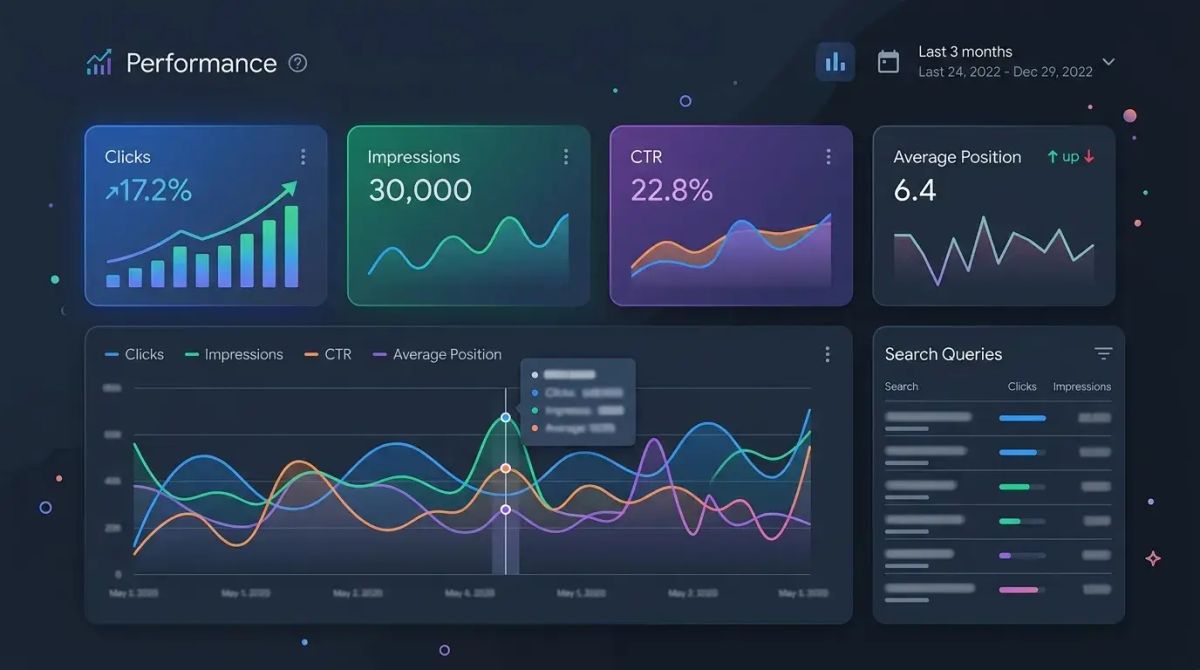
The Performance report is the most frequently used and most valuable section of GSC. It shows your site's performance in Google Search results through four core metrics.
Clicks
This metric shows how many times users clicked on your site's link in search results. This represents real traffic coming to your site from Google Search. When compared with organic traffic data in Google Analytics, small discrepancies are normal and result from different measurement methodologies.
Impressions
Impressions indicate how many times your site appeared in search results. The user does not need to actually see the result on their screen; being listed on the search results page is sufficient. If your impression count is high but clicks are low, this signals that you need to improve your title tags and meta descriptions.
Click-Through Rate (CTR)
CTR is the ratio of clicks to impressions, expressed as a percentage. Average CTR values vary significantly based on ranking position. First-position results typically achieve 25 to 35 percent CTR, while tenth-position results hover around 2 to 3 percent. Improving your CTR can increase traffic without any change in ranking position.
Average Position
This shows your site's average ranking position for a specific query in search results. The value can be decimal (for example, 3.7). Position 1 is the best ranking. Because this is an average, it can be misleading on its own; filtering by page yields more meaningful data.
Tips for Using the Performance Report Effectively
The Performance report allows filtering by query, page, country, device, and search appearance dimensions. One of the most effective strategies is to identify queries with high impressions but low CTR. By optimizing title tags and meta descriptions for these queries, you can boost click-through rates significantly.
The date comparison feature lets you compare performance across time periods. This is critical for measuring the impact of algorithm updates, understanding seasonal trends, and tracking the results of your SEO efforts. SEOctopus automatically pulls your GSC performance data, visualizes historical trends, and alerts you when it detects anomalies.
URL Inspection Tool
The URL Inspection tool shows in detail how Google sees a specific page. By pasting any URL into the search bar, you can view that page's index status, last crawl date, page experience data, and more.
What Can You Learn from the URL Inspection Tool?
You can see whether a page is in Google's index. If it is not, you learn why: the page might have a noindex directive, its canonical might point to a different page, or a crawl error may have occurred. These details are presented clearly. You can view the last crawl date, which helps you understand how frequently your page is crawled. You can see how Googlebot rendered your page, which is crucial for verifying that JavaScript-generated content is properly indexed.
Live URL Test
Using the Live URL Test option within the URL Inspection tool, you can test how Google sees the current version of a page. This feature is ideal for checking whether changes you have made are correctly detected by Google. You can also request indexing, which helps new or updated pages get indexed more quickly.
Index Coverage Report
The Index Coverage report provides a comprehensive view of the indexing status of all your site's pages. Pages are classified into four categories: Valid, Valid with warnings, Error, and Excluded.
Valid Pages
These are pages that have been successfully indexed and can appear in search results. Your valid page count represents the total number of your pages that are discoverable in Google. Monitoring this number helps you track indexing trends over time.
Error States
Server errors (5xx), redirect errors, submitted URL not found (404), submitted URL seems to be a Soft 404, and submitted URL has a crawl issue are common error types in this category. Regularly checking and fixing these errors is critical for your SEO health.
Excluded Pages
Excluded pages do not always indicate a problem. Statuses like "Alternate page with proper canonical tag" or "Page with redirect" are normal. However, you should pay attention to "Crawled - currently not indexed" and "Discovered - currently not indexed" statuses. These mean Google found your page but decided not to index it, which may point to content quality, page structure, or site authority issues.
SEOctopus's Technical Health Score feature automatically analyzes your GSC index coverage data and prioritizes critical indexing issues with actionable recommendations. This allows you to focus on the most important problems even on sites with hundreds or thousands of pages.
Sitemaps Submission
Through Google Search Console, you can submit your XML sitemap to Google. A sitemap is an XML file that describes your site's structure and lists the pages you want indexed.
Submitting a Sitemap
In the Sitemaps section of GSC, enter your sitemap URL and submit it. Typically this URL is yoursite.com/sitemap.xml. After submission, Google processes your sitemap and reports its status: successful, errored, or partially processed.
Monitoring Sitemaps
Regularly check the status of your submitted sitemaps. The difference between discovered URLs and indexed URLs is an important indicator. If there is a large gap, you need to investigate indexing issues. Ensure that URLs listed in your sitemap are current and do not include pages that return 404 errors or redirect.
Sitemap Best Practices
Keep your sitemap automatically updated; whenever a new page is added or a page is removed, the sitemap should reflect the change. For very large sites, split your sitemap into segments: create separate sitemaps for blog posts, product pages, and category pages. Each sitemap can contain a maximum of 50,000 URLs and must not exceed 50 MB.
Mobile Usability Report
Due to Google's mobile-first indexing approach, mobile usability is no longer optional — it is mandatory. GSC's Mobile Usability report identifies pages on your site that cause problems for mobile users.
Common Mobile Usability Issues
Text too small to read: Pages using font sizes that are unreadable on mobile devices trigger this error. A minimum of 16 pixels is recommended. Clickable elements too close together: If links or buttons lack sufficient spacing, users may tap the wrong element. Content wider than screen: Pages requiring horizontal scrolling cause this error. Viewport not set: The viewport meta tag is required for mobile-friendly rendering.
Fixing these issues not only removes GSC warnings but also improves user experience and positively impacts ranking performance. Mobile compatibility is a significant component of SEOctopus's Technical Health Score evaluation, and automatic alerts are sent when mobile issues are detected.
Core Web Vitals Report
Core Web Vitals are the three key metrics Google uses to measure page experience. GSC reports these metrics based on real user data from the Chrome UX Report.
LCP (Largest Contentful Paint)
LCP measures how long it takes for the largest content element on the page to load. A good LCP value is 2.5 seconds or less. To improve LCP, optimize large images, reduce server response time, and prioritize critical resources.
INP (Interaction to Next Paint)
INP measures how quickly the page responds to user interactions. A good INP value is 200 milliseconds or less. Long-running JavaScript tasks negatively affect INP; optimize code that blocks the main thread.
CLS (Cumulative Layout Shift)
CLS measures visual stability on the page. Unexpected shifts of elements during page load increase CLS. A good CLS value is 0.1 or less. Specify width and height for images, reserve space for dynamic content, and prevent layout shifts when fonts load.
Using the Core Web Vitals Report
GSC's Core Web Vitals report classifies your pages as Good, Needs Improvement, or Poor. Mobile and desktop are reported separately. By identifying poorly performing pages, you can make targeted improvements. Because Google uses these metrics as a ranking factor, Core Web Vitals optimization directly impacts your SEO performance.
Security and Manual Actions
The Security Issues and Manual Actions sections of GSC are critical reports that indicate the health of your site's relationship with Google.
Manual Actions
Manual actions are penalties applied to websites by Google's human reviewers. They are issued when search quality guidelines are violated. Common reasons include unnatural links (artificial link building), spammy content, hidden text or redirects, pure spam, and user-generated spam.
If you have received a manual action, you will see a clear warning in GSC. After fixing the issue, you can submit a reconsideration request through GSC. The reconsideration process may take several weeks.
Security Issues
GSC reports security issues detected on your site: malware, deceptive pages (phishing), harmful downloads, and uncommon downloads are listed in this section. These issues pose a serious threat to both your users and your search rankings. When security issues are detected, you must act immediately.
Links Report
GSC's Links report shows external links pointing to your site and your site's internal link structure.
External Links
You can see your most-linked pages, which helps you understand which content receives the most references. You can view the top linking sites, which allows you to assess the quality of your link profile. You can see the most-used anchor texts, which helps you evaluate whether your link profile appears natural.
Internal Links
The internal links report shows your site's internal linking structure. Pages with the most internal links are typically your most important pages. Use this report to check whether your important pages receive sufficient internal links. Identify orphan pages (pages with no internal links) and add appropriate internal links to them.
Removals Tool
The Removals tool allows you to temporarily remove specific URLs from Google search results. This tool consists of three sections.
Temporary Removal Requests
In urgent situations, you can temporarily hide a URL from Google search results for approximately six months. This is useful for accidentally published sensitive information or outdated content that needs updating. For permanent removal, you must either delete the page from your site or add a noindex directive.
Outdated Content Removal
If an old version of a page appears in Google's cache and the page has already been deleted or updated, you can use the outdated content removal feature.
SafeSearch Filtering
If you believe your content has been incorrectly classified as adult content, you can review SafeSearch filtering in this section.
International Targeting
If you manage a multilingual or multi-regional website, GSC's international targeting features are critically important.
Hreflang Validation
GSC detects and reports errors in your hreflang tags. Hreflang tags tell search engines about different language or regional versions of a page. Common errors include missing return tags, invalid language codes, and incorrect URLs.
Country Targeting
For URL prefix properties, you can target a specific country. However, this option is not available for domain properties. Country targeting can help your site rank better in a specific country.
SEOctopus analyzes GSC data by language and region for multilingual sites, allowing you to monitor performance in each location separately. This feature is extremely valuable for measuring the effectiveness of your international SEO strategy.
GSC API for Advanced Analysis
The Google Search Console API provides programmatic access to GSC data, enabling analyses at a depth that the standard interface cannot offer.
What Can You Do with the API?
In the GSC interface, data is limited to 1,000 rows. Through the API, this limit can be exceeded, yielding much larger datasets. You can build custom reports and dashboards. You can combine data with Google Analytics, CRM, or other business intelligence tools. You can set up automated alert systems to detect traffic drops or indexing issues instantly.
API Use Cases
Keyword cannibalization detection: You can analyze at scale whether multiple pages rank for the same query. Long-tail analysis: You can measure the cumulative impact of thousands of low-volume queries. Page group analysis: You can compare performance across different page types such as blog posts, product pages, and category pages. Historical trend analysis: You can pull data up to 16 months back to monitor long-term trends.
SEOctopus offers built-in GSC API integration. Without requiring technical knowledge, you can visualize your GSC data in the SEOctopus dashboard, generate automated reports, and receive AI-powered recommendations. This integration makes the power of the GSC API accessible to everyone.
GSC and Google Analytics Integration
When Google Search Console and Google Analytics (GA4) are used together, a far more comprehensive picture emerges.
Benefits of Integration
GSC shows user behavior before arriving at your site (which queries they searched, what position they saw you at), while GA4 shows user behavior after arriving at your site (which pages they visited, how long they stayed, whether they converted). By combining both, you can track the entire journey from search query to conversion.
How to Set Up Integration
In GA4, navigate to the Admin section, click the Search Console Linking option, and connect your GSC property. Once linked, you gain access to the Organic Google Search Queries and Organic Google Search Traffic reports within GA4.
Combined Usage Strategies
Find high-traffic queries in GSC, then check the conversion rate of users arriving through those queries in GA4. If traffic is high but conversions are low, optimize the landing page. In GA4, find pages with high conversion rates, then check in GSC which queries those pages rank for. By improving ranking positions for those queries, you can drive more converting traffic.
Tips for Getting the Most Out of Google Search Console
Using GSC effectively requires a regular and systematic approach. Here are strategies for maximizing the value you get from GSC.
Weekly GSC Audit Routine
Every week, check the index coverage report and fix new errors. Compare this week's performance data with the previous week to spot sudden changes. Review the security issues and manual actions sections. Monitor changes in the Core Web Vitals report.
Improving Low-CTR Pages
Filter for pages with high impressions but low CTR. Make the title tags of these pages more compelling. Rewrite meta descriptions to align with user search intent. Add structured data to try to achieve rich result appearances.
Solving "Discovered Not Indexed" Issues
Regularly review pages Google has discovered but not indexed. Assess the content quality of these pages; improve them if the content is thin or duplicated. Strengthen internal linking to pass more authority to these pages. Ensure these pages are listed in your sitemap.
Using Regex Filters
In GSC's Performance report, you can use regex (regular expression) filters. This feature is a powerful tool for filtering specific patterns in queries or URLs. For example, you can use regex filters to separate branded from non-branded queries, filter pages under a specific directory, or find question-format queries.
Managing Multiple Properties
If you manage multiple websites, add each one as a separate property in GSC. In the Users and Permissions section, assign appropriate access levels to your team members. Full access, restricted access, and association options are available.
SEOctopus lets you manage all your GSC properties from a single dashboard. If you manage multiple sites or a multilingual site, SEOctopus's centralized control panel analyzes your GSC data collectively, saving time and ensuring you never miss critical issues.
Frequently Asked Questions
Is Google Search Console completely free?
Yes, Google Search Console is an entirely free service. You can log in with your Google account and add as many websites as you wish. There is no premium or paid version. Because the data it provides comes directly from Google's own systems, its reliability is beyond question. Every website owner, regardless of size or budget, should use GSC.
How far back does GSC data go?
Google Search Console performance data goes back up to 16 months. This allows you to compare with the same period last year and is sufficient for understanding seasonal trends. However, data older than 16 months is deleted and cannot be recovered. For this reason, if you want to perform long-term analysis, it is recommended to regularly export your GSC data or use a tool like SEOctopus with built-in GSC API integration to store your data permanently.
What does "Crawled - currently not indexed" mean in GSC?
This status indicates that Google crawled your page but did not find it worthy of indexing. There can be several reasons: the content quality may be deemed insufficient, Google may prefer other pages with similar content, your site's overall authority may be low, or the page may not receive enough internal links. To resolve this, improve the content quality, ensure it offers unique value, and strengthen the internal linking structure. SEOctopus's Technical Health Score automatically detects these issues and provides prioritization recommendations.
Do pages with poor Core Web Vitals scores affect search rankings?
Yes, Core Web Vitals are a direct ranking factor. However, their impact is lower than factors like content quality and links. Google evaluates Core Web Vitals using a threshold system: pages that pass the good threshold gain a ranking advantage, while pages in the poor threshold experience a disadvantage. Between two pages with similar content quality, the Core Web Vitals difference can be decisive. Therefore, you should not neglect Core Web Vitals optimization, but you should not prioritize it above content quality either.
Why do GSC click numbers not match Google Analytics?
GSC and GA4 use different measurement methodologies. GSC counts clicks in search results, while GA4 counts visits where the JavaScript code was able to load on your site. The difference can stem from several causes: a user may click and return before the page loads, JavaScript blockers may prevent the GA4 code from running, or slow page loading may prevent the GA4 tag from firing. Typically, GSC click counts are slightly higher than GA4 organic session counts, and a 10 to 20 percent difference is considered normal.
How do I access the Google Search Console API?
To access the GSC API, you need to create a project in Google Cloud Console, enable the Search Console API, and obtain OAuth 2.0 credentials. Through the API, you can access performance data, sitemap status, and URL inspection operations. If you want to skip this process that requires programming knowledge, you can use SEOctopus's built-in GSC integration. SEOctopus automatically pulls your GSC API data, visualizes it, and provides AI-powered analysis, giving you access to all deep data without dealing with the API directly.
When does data appear after adding a new site to GSC?
After adding a new site to GSC, data typically begins appearing within 24 to 48 hours. However, meaningful data accumulation may take several weeks, especially for new sites with low traffic. Google's process of crawling and indexing your site depends on its size, structure, and external link profile. Submitting your sitemap and requesting indexing through GSC can speed up this process.
Why is the average position value in GSC a decimal?
The average position is the mean of all ranking positions shown to different users at different times for a specific query. Google can show different results to different users for the same query, based on factors like personalization, location, and device. Therefore, the position value is a decimal average rather than a whole number. For example, a value of 3.7 means you appear sometimes in 3rd position, sometimes in 4th or 5th position.